Overview :
This document describes the integration between Growfin and Slack, enabling real-time communication and visibility into collections activities directly within Slack channels.
The integration enables teams to receive updates and alerts, and act on collection workflows directly within Slack.
This helps streamline workflows and ensures that finance teams never miss important updates.
Two levels of Slack integration
Account-level configuration is done by an admin once for the entire organisation. It connects Growfin to a specific Slack channel, so all account-wide notifications, like payment updates, overdue alerts, and AR activity flow into that shared channel. Everyone in that channel sees them.
User-level configuration is done by each individual user for themselves. It lets a team member connect their own Growfin account to Slack so they receive personal notifications, like replies to their comments, tasks assigned to them, or mentions directly in Slack, separate from the shared channel.
Account - Level Configuration
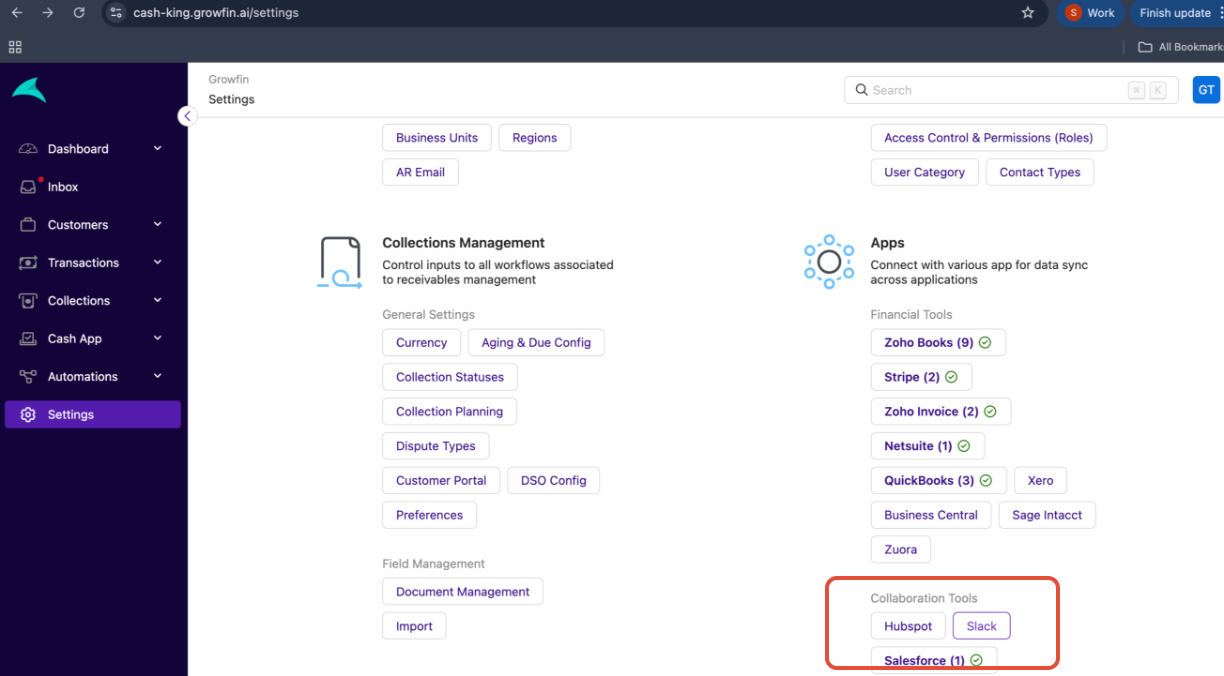
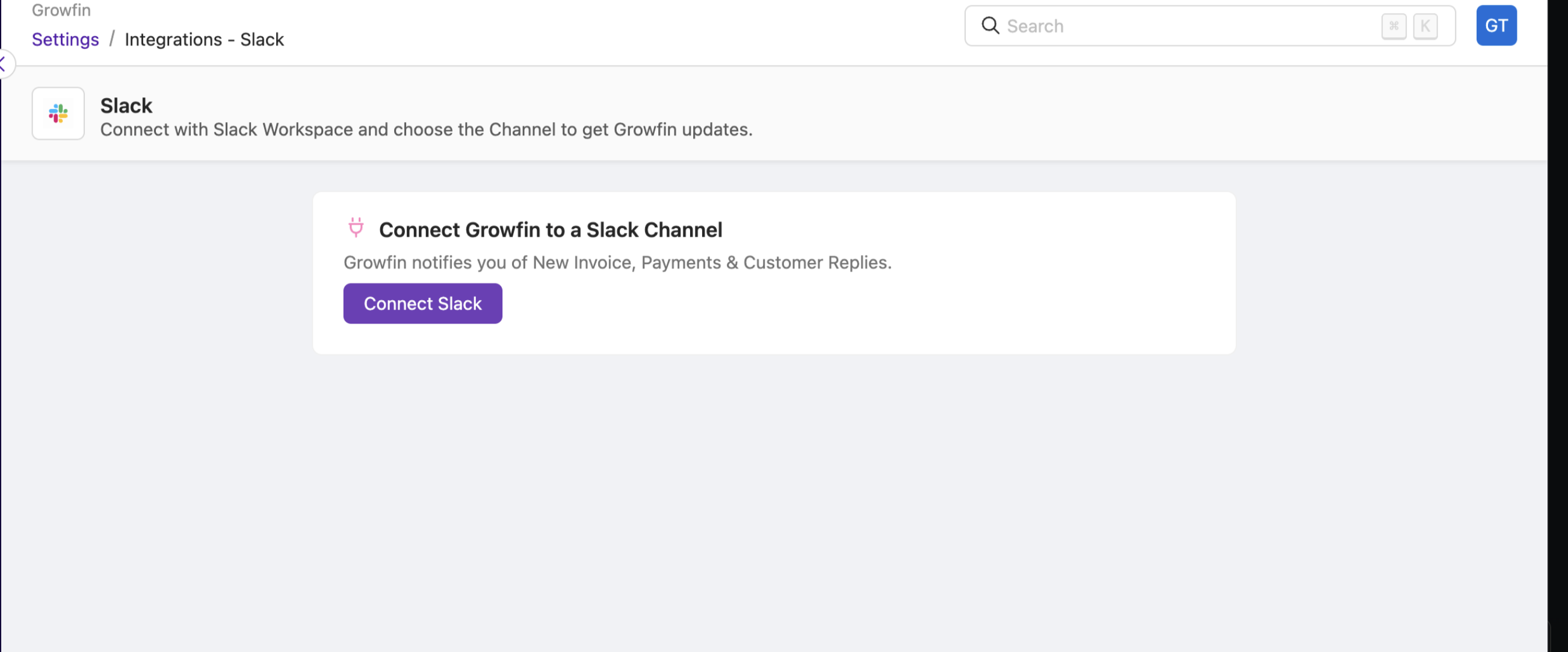
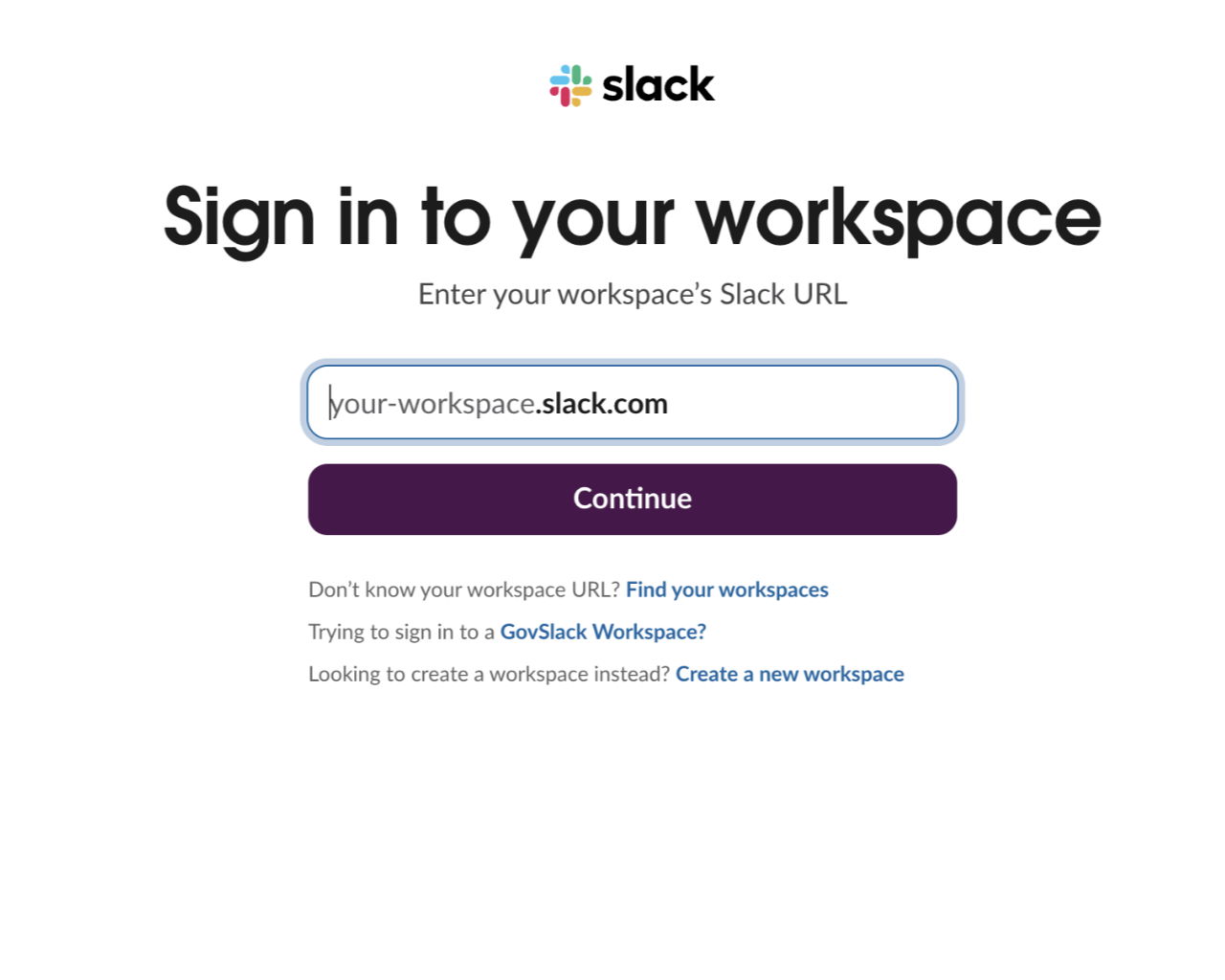
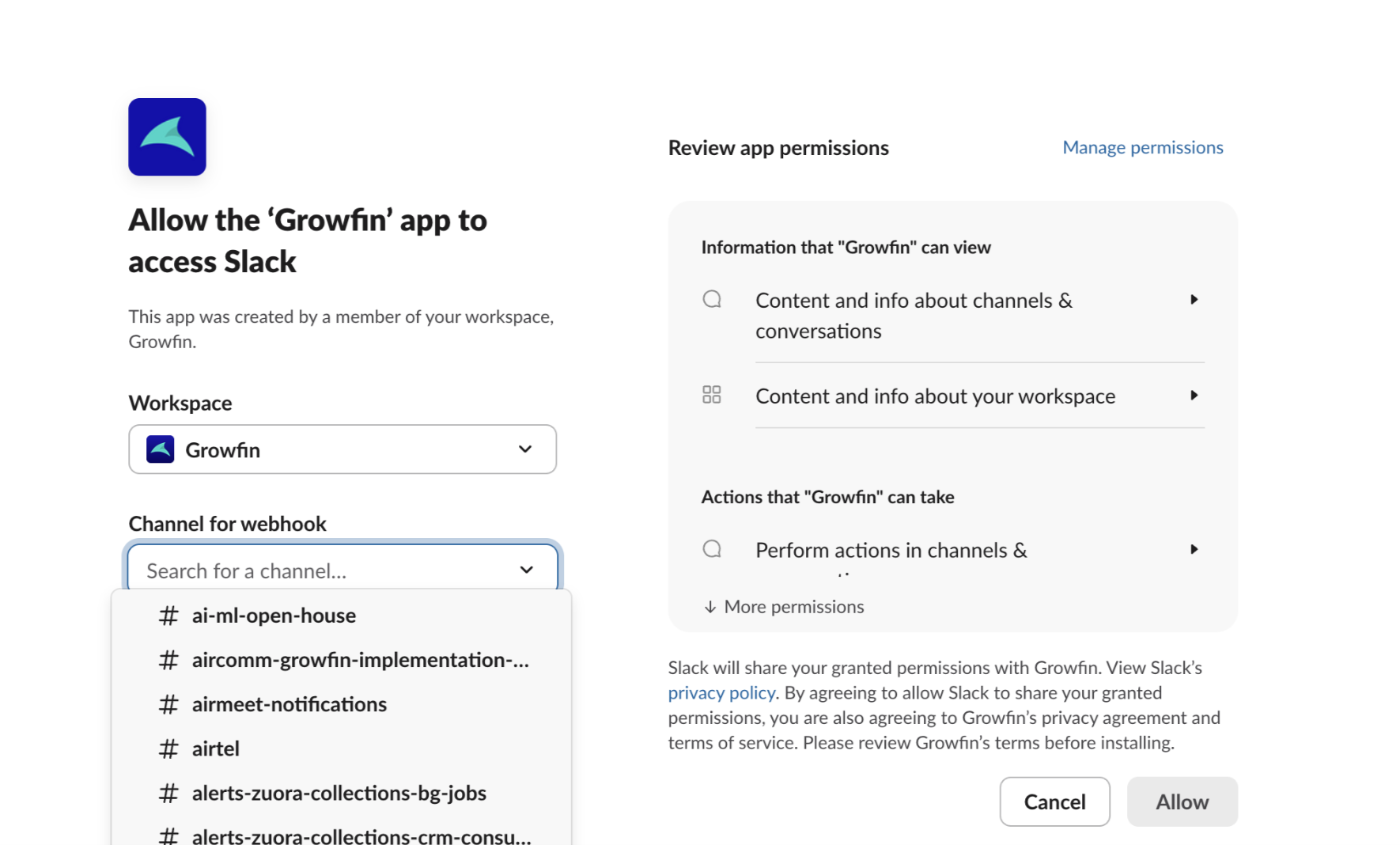
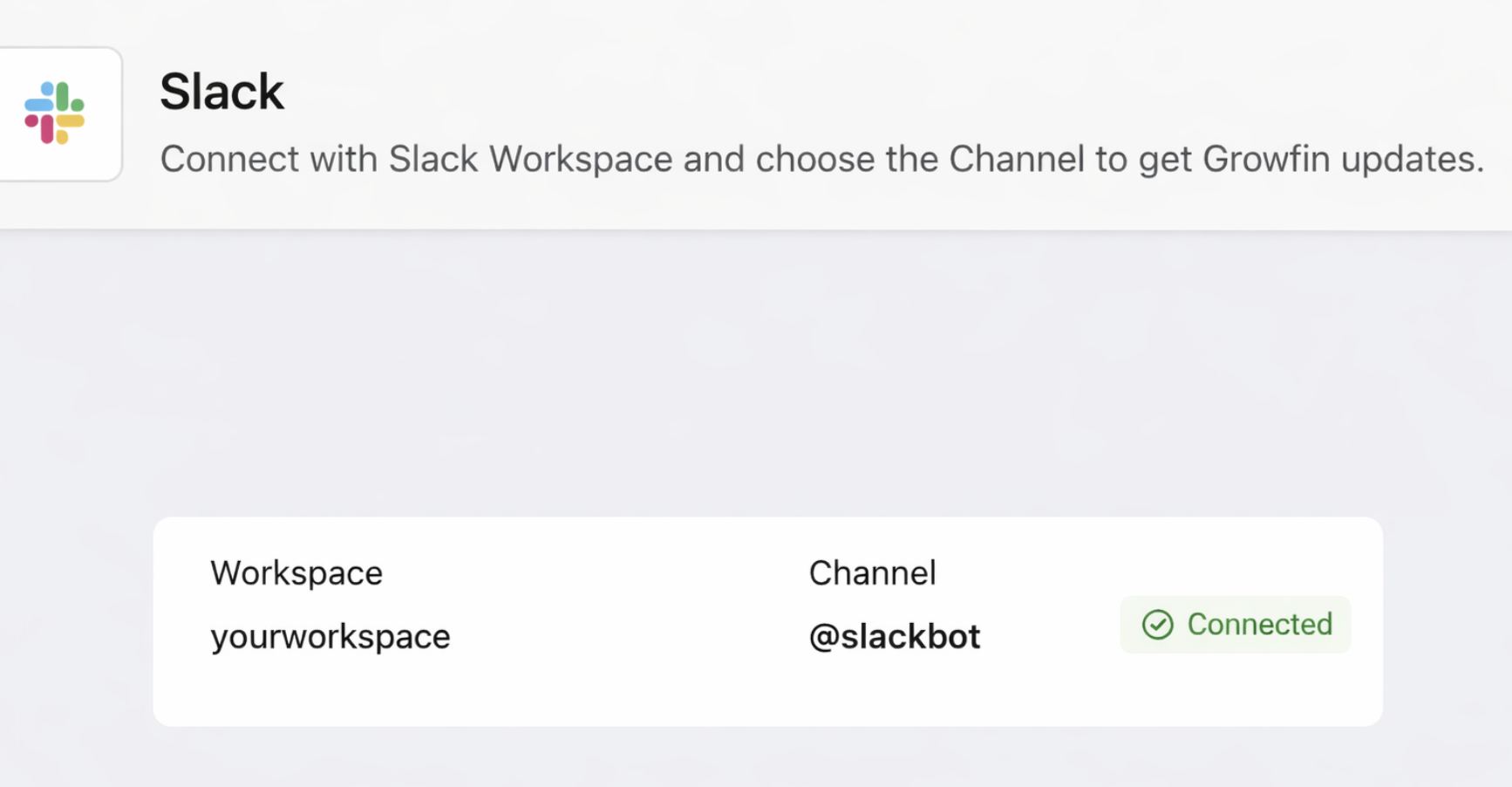
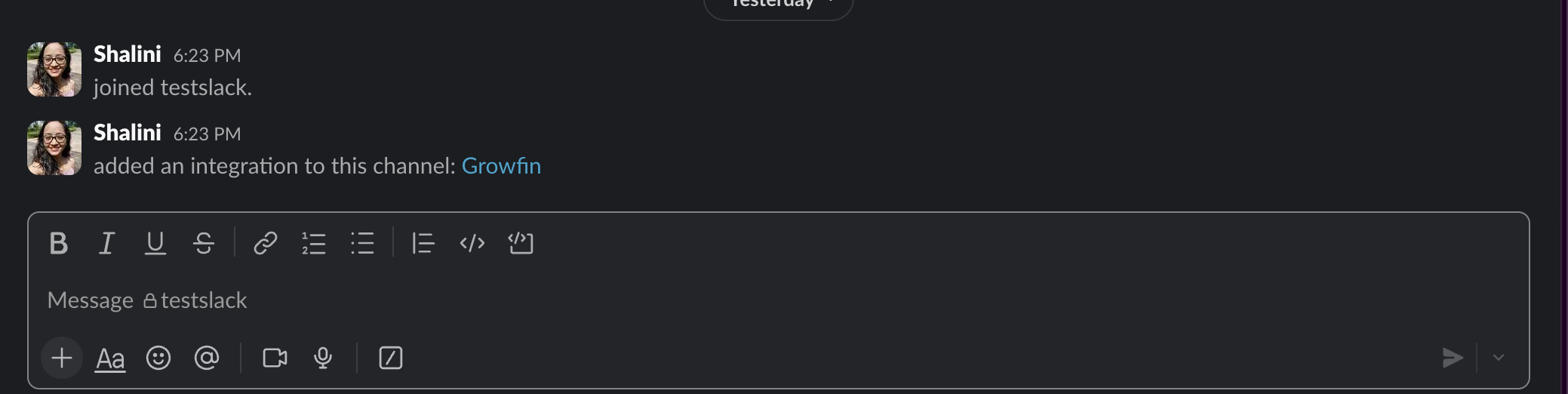

Note: This is a one-time account-level setup. You must have Admin permissions in both Slack and Growfin to complete this step.
User-level configuration
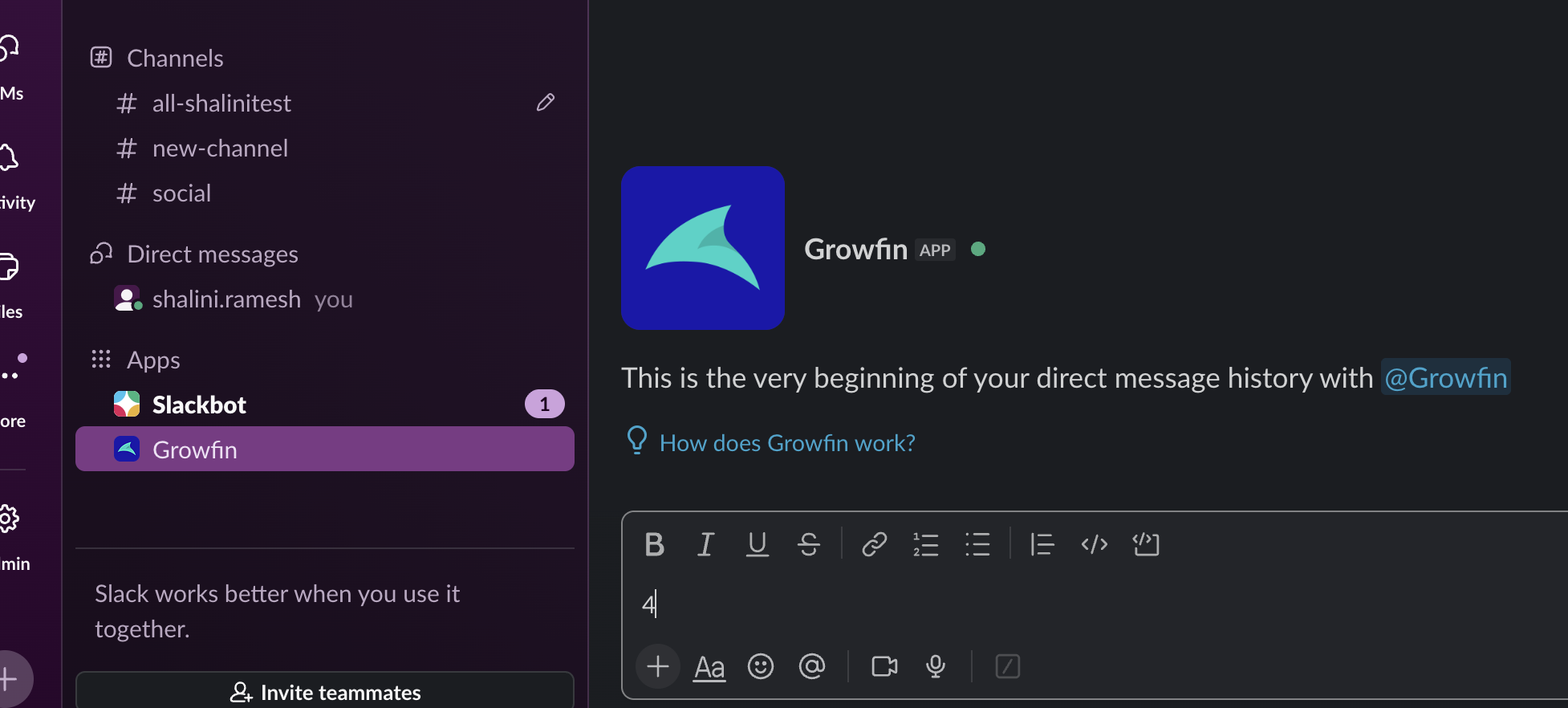
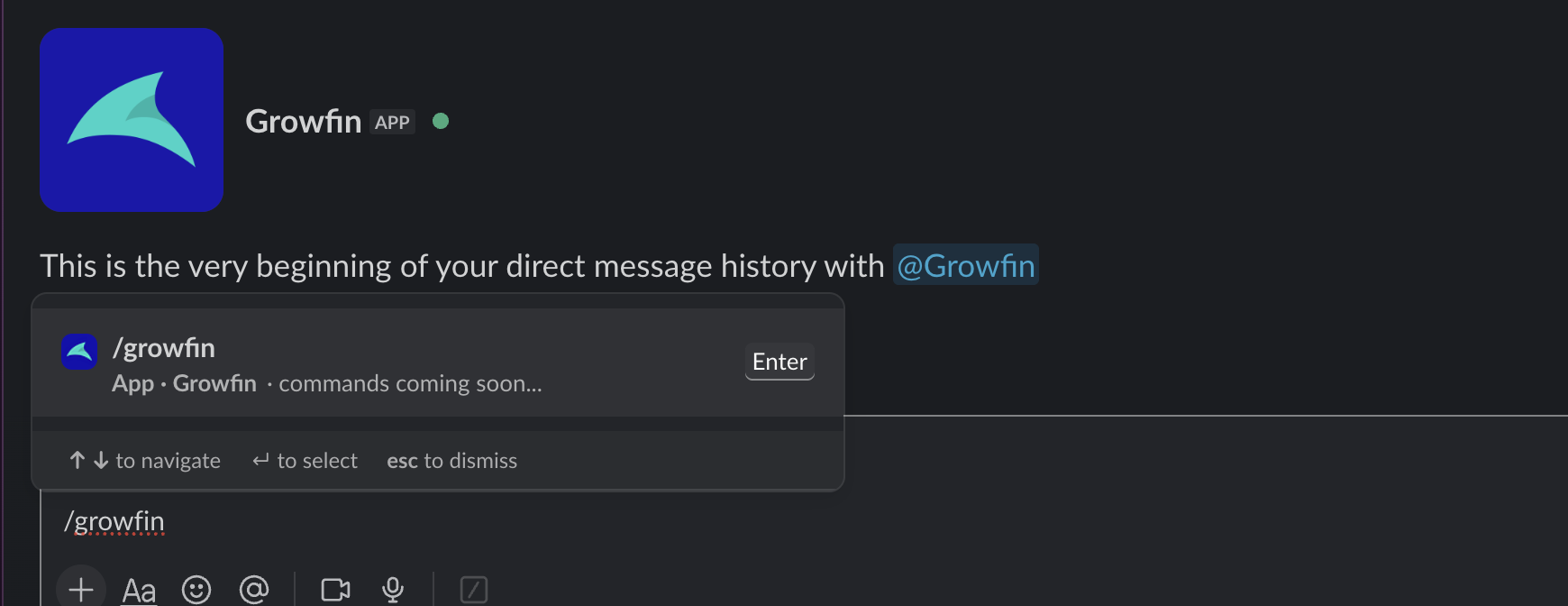
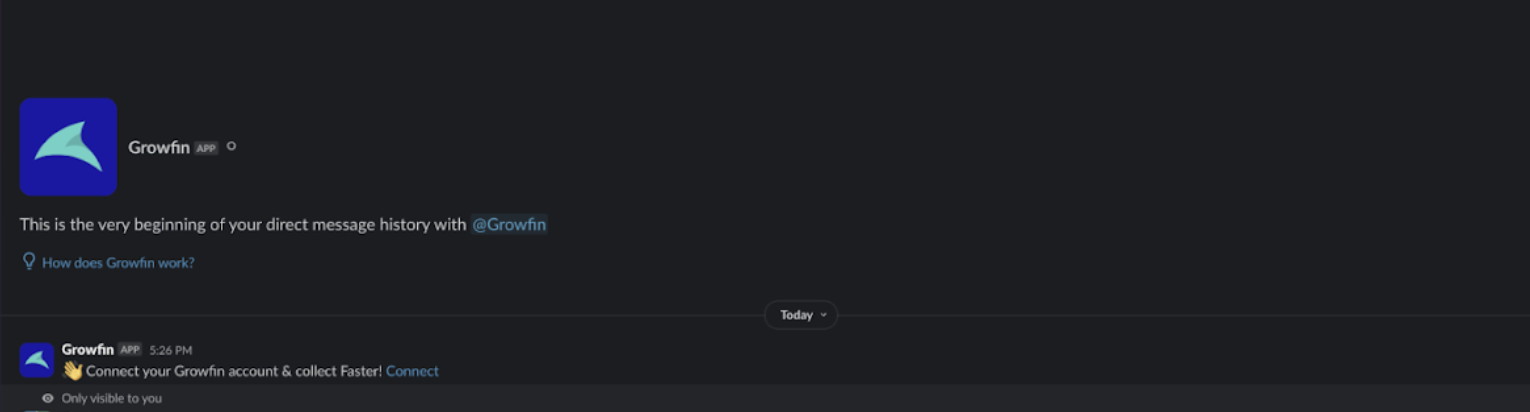

Note : This step must be repeated by all users who want to receive Slack notifications from Growfin.
Slack Notifications in Growfin
Growfin sends two types of notifications through Slack:
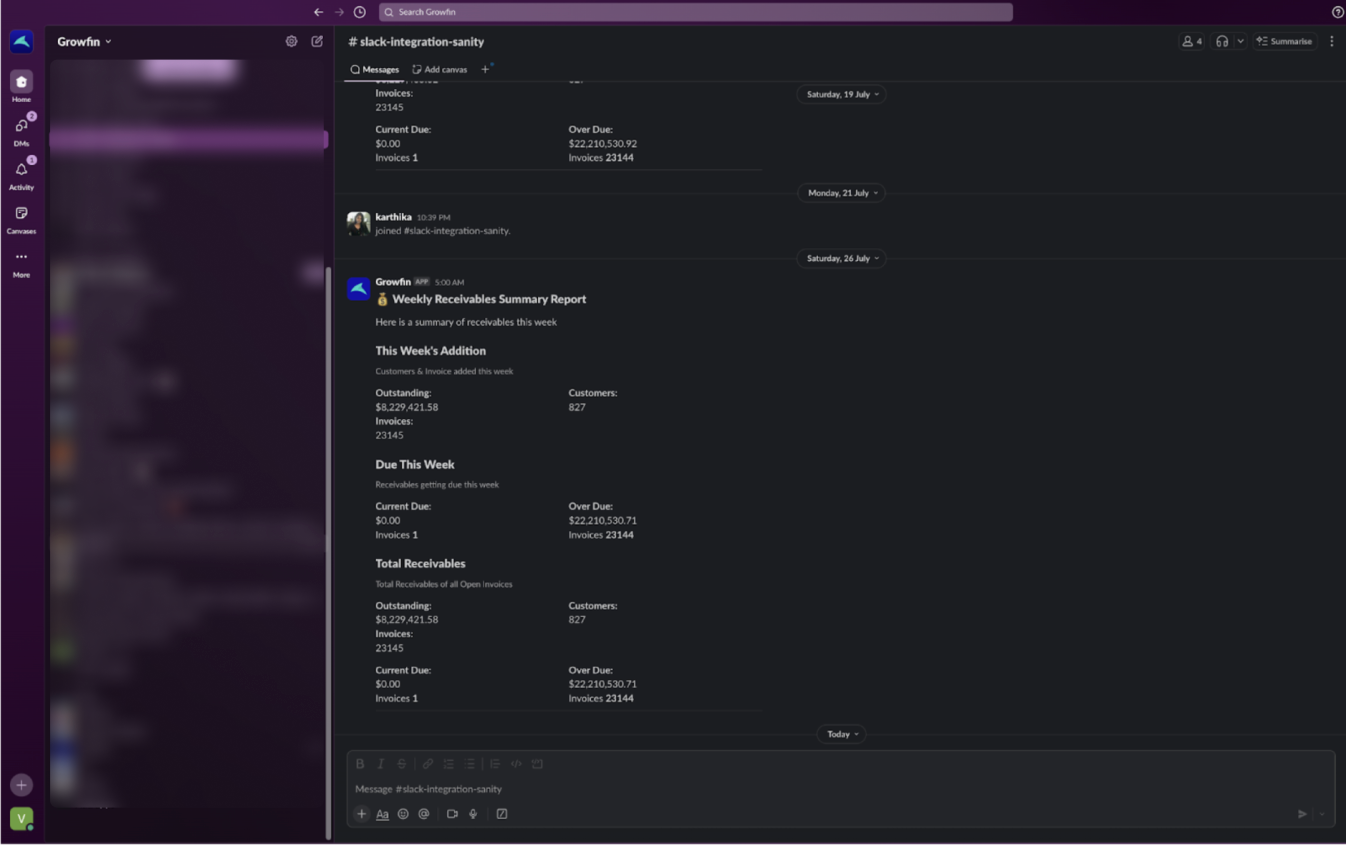
1. Account-Level Notifications :
Sent to the Slack channel selected during the initial connection.
Includes the Weekly Receivables Summary Report
Data included:
Outstanding Amount
Number of Customers
Number of Open Invoices
Current Due
Overdue Amount
2. User Activity Notifications :
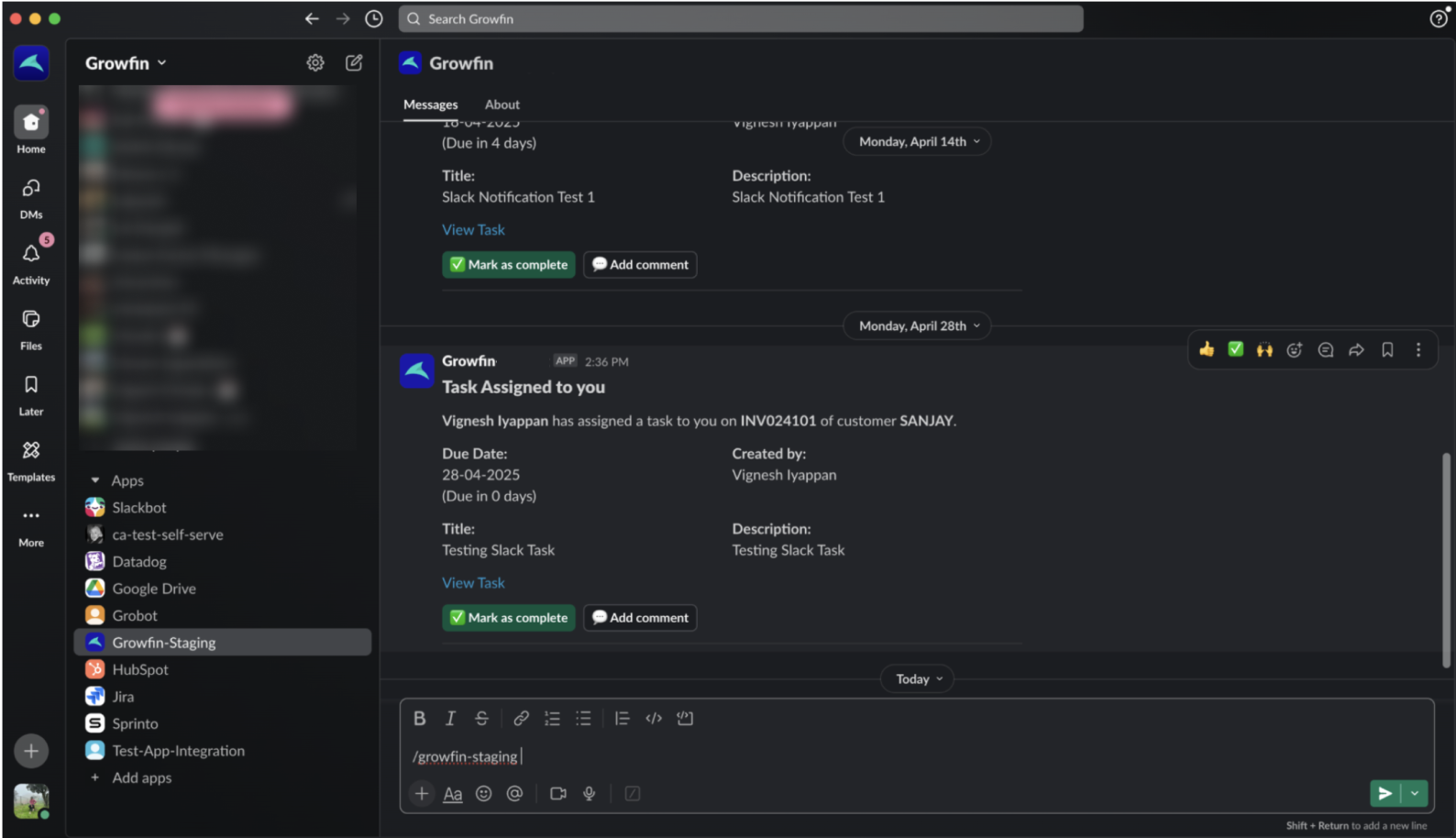
Sent to users individually via the Growfin Slack App, based on the activity assigned to them:
| Activity | Notification Trigger |
|---|---|
| New Invoices | When an invoice is generated for a customer assigned to the user |
| Payments Received | When a payment is recorded for a customer assigned to the user |
| Email Replies | When an email sent via Growfin receives a response |
| Task Assignments | When a task is assigned to the user |
For Task Assignments, users can:
Mark as Complete – closes the task in Growfin directly from Slack
Add Comment – posts a comment to the task in Growfin via Slack
Notes
Users must connect individually to receive user-specific notifications.
Admins must complete the account-level connection before user-level authorization can happen.
Was this article helpful?
That’s Great!
Thank you for your feedback
Sorry! We couldn't be helpful
Thank you for your feedback
Feedback sent
We appreciate your effort and will try to fix the article